Example 1
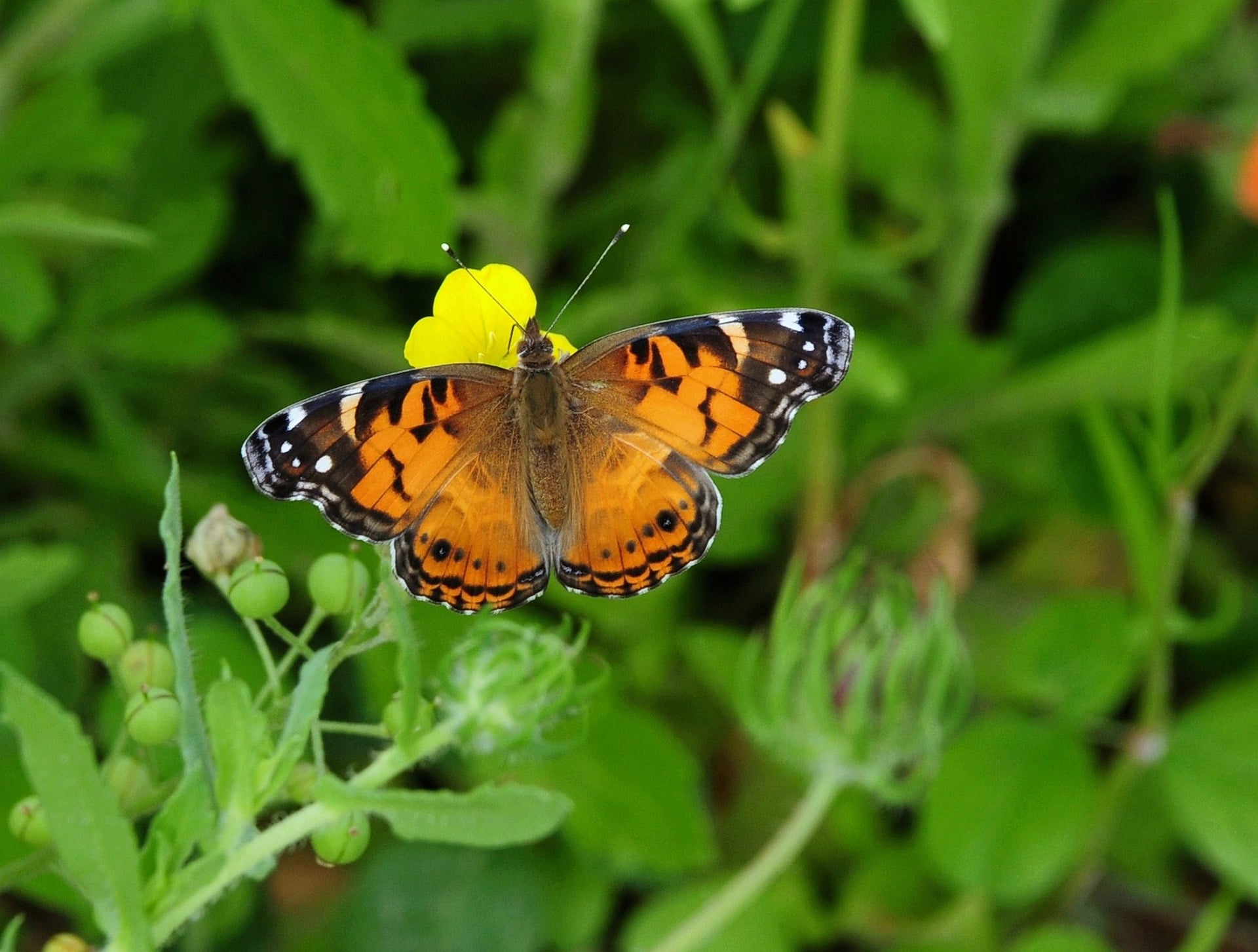
This page has a picture of a butterfly.
On this page we will:
A listing is a Quarto feature that automatically builds a list or grid of items for you.
There are two ways to use listings:
A common use case is a blog or “Projects” page that lists documents from a folder. We create it with listing: in the YAML. At a minimum, you specify contents, which determines which documents to include.
For example, this will create a listing from files within the pages/ folder:
---
title: Projects
listing:
  contents: pages
---
In this example, we have add more criteria:
type: how to display the items (for example, default list or grid).grid-columns: number of columns when using a grid layout.fields: which pieces of metadata to show for each item (for example, title, subtitle, image).image-height: how tall to show any image field.---
title: Projects
listing:
contents: pages
type: grid
grid-columns: 3
fields: [title, subtitle, image]
image-height: "100"
---Example:
You can also define multiple listings on the same page and group them.
This approach assumes that the pages in pages/ have a year: field in their YAML. Each listing block uses include: to filter by year, and an id that matches a placeholder div later in the document.
---
title: Projects
listing:
  - id: projects-2026
    contents: pages
    include:
      year: 2026
    fields: [title, subtitle, image]

  - id: projects-2025
    contents: pages
    include:
      year: 2025
    fields: [title, subtitle, image]

  - id: projects-2024
    contents: pages
    include:
      year: 2024
    fields: [title, subtitle, image]

format:
  html:
    page-layout: article
---

## 2026

::: {#projects-2026}
:::

## 2025

::: {#projects-2025}
:::

## 2024

::: {#projects-2024}
:::Note: This is more advanced. The approach is based on quarto-dev/quarto-web’s gallery (link).
First, create a YAML file (e.g., links.yml). This contains the data for your listing page - the content your want to show, such as descriptions, links, and titles - while the page layout is handled separately by Quarto and the template below.
In this example, each top-level - category: blcok is one section of the listing. Inside each section, the tiles: field contains the individual cards you want to display, and each card can have fields such as title, subtitle, href, and thumbnail.
For example:
- category: Training courses
  description: |
    Examples of training courses developed using Quarto.
  tiles:
    - title: "DES RAP Book"
      subtitle: "Self-paced training resource on creating discrete-event simulation models in Python and R as part of a reproducible analytical pipeline."
      href: "https://pythonhealthdatascience.github.io/des_rap_book/"
      thumbnail: /images/listings/des_rap_book.png
    - title: "Testing in Research Workflows"
      subtitle: "Tutorial on testing in Python and R, accompanies HDR UK Futures training videos."
      href: "https://pythonhealthdatascience.github.io/stars-testing-intro/"
      thumbnail: /images/listings/testing_in_research.png

- category: Researcher profiles
  description: |
    Examples of researcher profiles developed using Quarto.
  tiles:
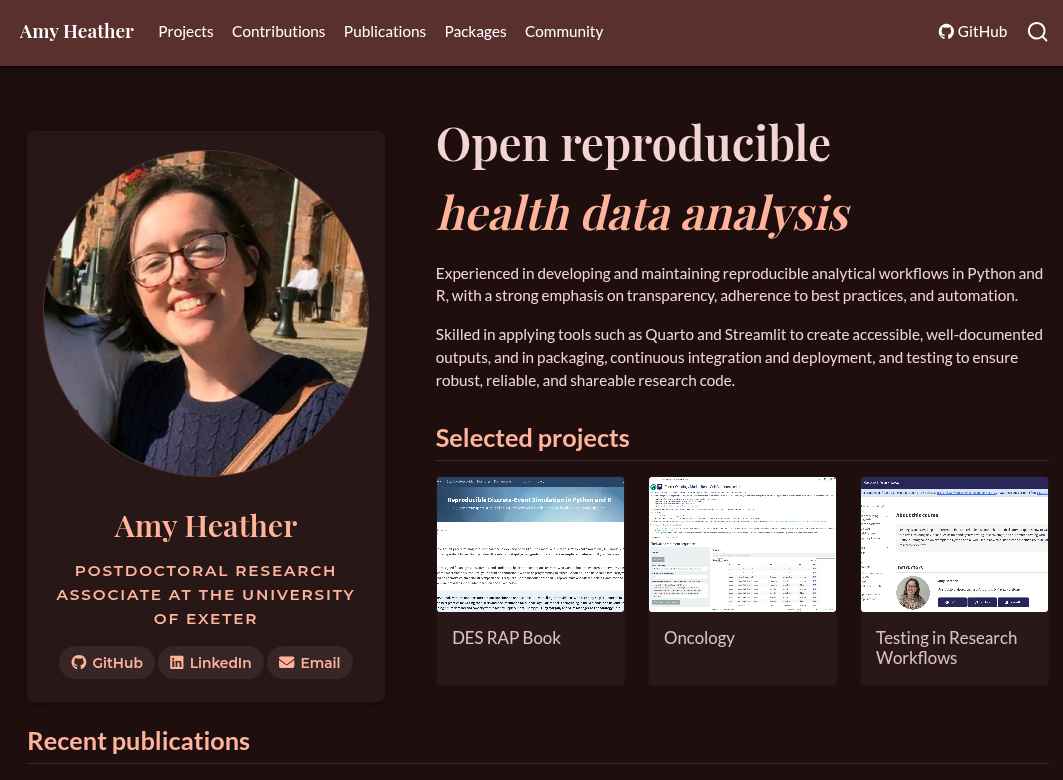
    - title: "Amy Heather"
      href: "https://amyheather.github.io/"
      thumbnail: /images/listings/amy_heather.png
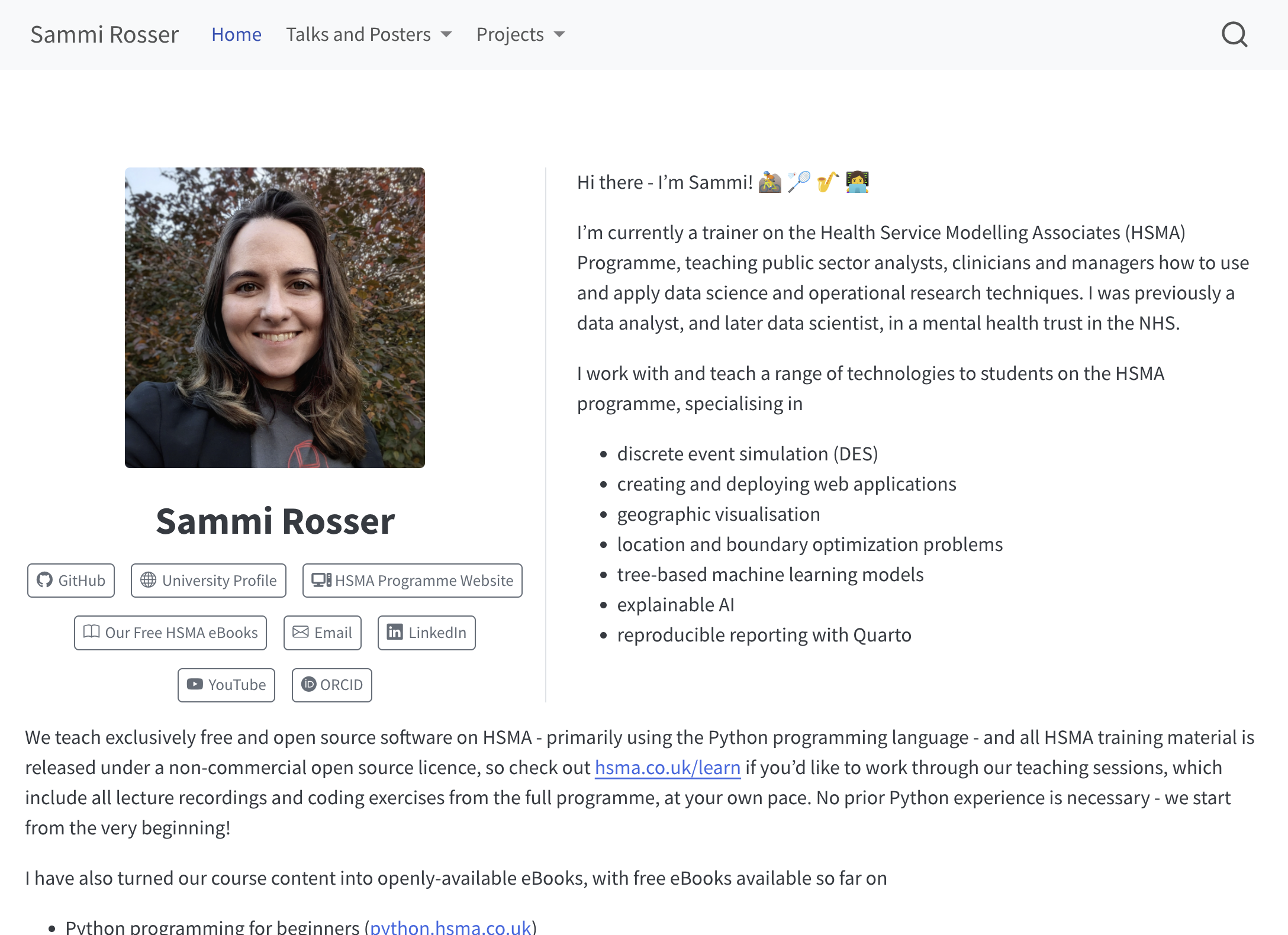
    - title: "Sammi Rosser"
      href: "https://sammirosser.com/"
thumbnail: /images/listings/sammi_rosser.pngNext, create an EJS template file (e.g., links.ejs). This file tells Quarto how to display the data from links.yml, so you can think of it as the layout or “recipe” for turning your YAML data into HTML on the page.
For example:
<!-- This EJS file is adapted quarto-dev/quarto-web.
With thanks to the quarto-web contributors for sharing it under an open license.
URL: https://github.com/quarto-dev/quarto-web/blob/main/docs/gallery/gallery.ejs
-->

```{=html}

<% for (const item of items) { %>

<h2><%- item.category %></h2>

<p><%- item.description %></p>

<div class="list grid" style="column-gap: 10px;">

<% for (const tile of item.tiles) { %>
  <div class="card border-2 rounded-3 g-col-12 g-col-sm-6 g-col-md-4 mb-2" style="background-color: #ffffff;" <%= metadataAttrs(tile) %>>

    <!-- Title and code -->
    <div class="card-header py-1 px-2 border-bottom border-1 bg-light">
      <small class="card-text inline-block">
        <a href="<%- tile.href %>" class="listing-title"><%= tile.title %></a>
      </small>
    </div>

    <!-- Thumbnail -->
    <a href="<%- tile.href %>">
      <img src="<%- tile.thumbnail %>" alt="<%- tile.description %>" class="card-img-top"/>
    </a>

    <!-- Subtitle -->
    <small>
      <div class="card-body py-2">
        <span class="text-muted listing-subtitle d-block"><%= tile.subtitle %></span>
      </div>
    </small>

  </div>
<% } %>

</div>

<% } %>

```.qmd pageNow create the Quarto page that will display the listing. This page connects the data file (links.yml) to the template file (links.ejs) and tells Quarto where the finished listing should be inserted.
The ::: {#links} div is where Quarto injects the rendered listing ofr the listing configuration with the same id.
---
title: Listing
listing:
  - id: links
    contents: links.yml
    template: links.ejs
---

::: {#links}
:::
To include the page in your site, add the .qmd file to _quarto.yml
Examples of training courses developed using Quarto.


Examples of researcher profiles developed using Quarto.