Basic structure
On this page we will:
- Understand the two core files in a basic Quarto website.
- Learn how to render and preview the website.
We’ll be creating a Quarto website. A simple website project just needs two key files:
_quarto.ymlindex.qmd
1 _quarto.yml
This is file defines your project settings and website structure.
The file uses YAML, which is just a plain text format for settings, written as key: value pairs, for example title: My website. Indentation (spaces at the start of a line) shows that something belongs “inside” something else, a bit like folders within folders.
Below is an example from quarto-template. Hover over each line to see an explanation:
1project:
  type: website

website:
2  title: "Quarto Template"
3  navbar:
4    right:
      - icon: github
        text: GitHub
        href: https://github.com/pythonhealthdatascience/quarto-template/
5  sidebar:
6    - logo: images/exeter.png
7      contents:
        - text: Overview
          href: index.qmd
        - pages/1_making_a_change.qmd
        - pages/2_markdown_basics.qmd
        - pages/3_quarto_features.qmd
        - pages/4_images_videos_documents.qmd
        - pages/5_inline_html.qmd

8format:
  html:
theme: default- 1
- Website: Defines that this project builds as a website.
- 2
- Website title: Appears in broswer tab and navbar.
- 3
- Navbar: The navigation bar across the top of your site.
- 4
- GitHub link: Adds a GitHub icon on the right side of the navbar linking to the repository (which contains the source files for the site).
- 5
- Sidebar: Displays navigation links down the left-hand side.
- 6
- Logo: The image shown at the top of the sidebar.
- 7
-
Sidebar contents: Lists website pages. Will list using page titles by default, but can override with
text(title to use) andhref(path to file). - 8
- Theme: Site theme (covered on Customising the site appearance page).
A Quarto book is basically a website with chapter-style navigation. Under the hood, it’s still a Quarto website - just organised a little differently.
See the books guide for more information.
Example:
project:
  type: book

book:
  title: "Quarto Template"
  favicon: images/exeter.png
  chapters:
    - text: Overview
      href: index.qmd
    - pages/pagename.qmd
  navbar:
    right:
      - icon: github
        text: GitHub
        href: https://github.com/pythonhealthdatascience/quarto-template/
  sidebar:
    logo: images/exeter.png
2 index.qmd
A .qmd file is a Quarto Markdown document. It mixes metadata at the top, text, and (optionally) code. For a website, index.qmd is treated as the homepage: when someone visits the root of your site, Quarto serves index.html, which comes from `index.qmd.
If you’re familiar with R Markdown (
.Rmd), these are similar, but.qmdis more flexible.
Each .qmd file begins with YAML front matter, enclosed by three dashes (---). This defines metadata such as the page title, author information and date. Below that is the main content of the page. Here we just have one sentence: This is my homepage..
---
title: My homepage
author:
  - name: Amy Heather
    orcid: 0000-0002-6596-3479
    affiliations: University of Exeter
  - name: Thomas Monks
    orcid: 0000-0003-2631-4481
    affiliations: University of Exeter
date: 06-01-2026
---


This is my homepage.
3 Rendering your website
Rendering means converting your Quarto source files into the final website - a collection of .html pages that live inside a folder called _site. To render your site:
- Open
index.qmdin the editor, and click the Preview button in the top right hand corner
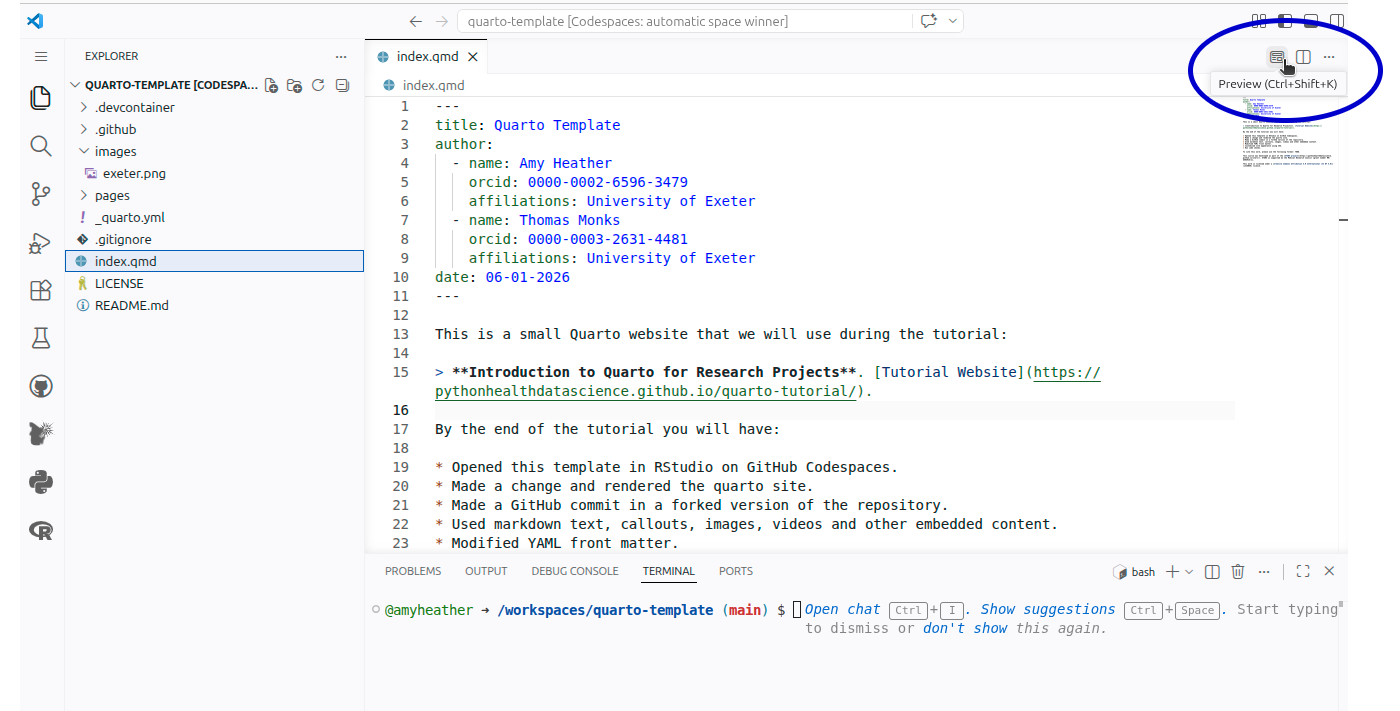
- In the bottom panel in the Terminal, you should see it says Preparing to preview and runs through files. It is creating
_sites/folder containing your rendered site. Then when it is done, green text sayingBrowse at ....
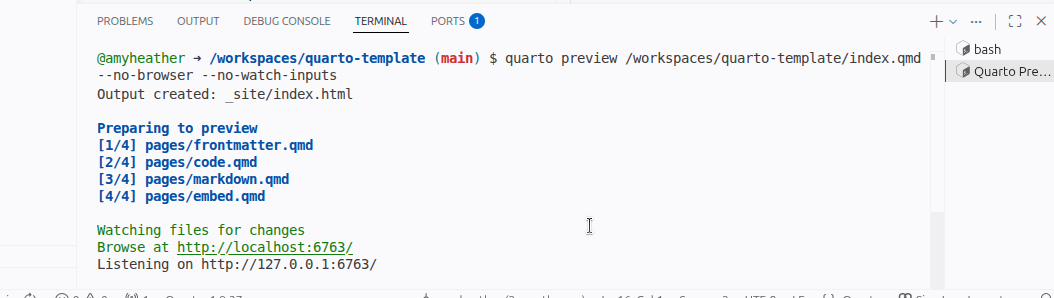
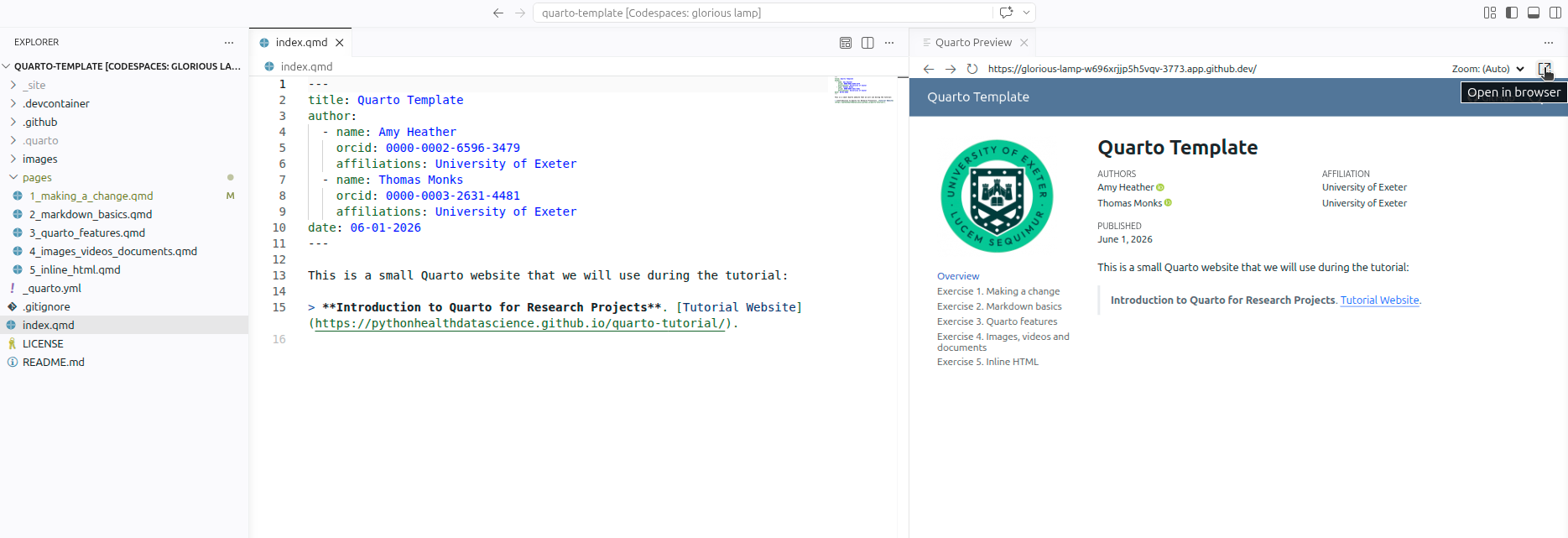
You are now viewing a live preview of your site in the browser. Nothing is public yet; this preview only runs on your own computer. In other words, you are the only person who can see this site right now, and it will not appear on the internet until you deliberately publish or upload the rendered files somewhere.
By default, VSCode will open the preview in-line. This will be quite a small preview - to open it in a new tab, either copy the URL from the Terminal (
http://localhost:...) or click the “Open in Browser” button in the top right.
Alternatively, you can render and preview your site directly via commands in the terminal.
In the bottom panel, ensure you are on the Terminal tab. The Terminal is a place where you type commands instead of clicking buttons. We just need to type quarto preview then press Enter on your keyboard.
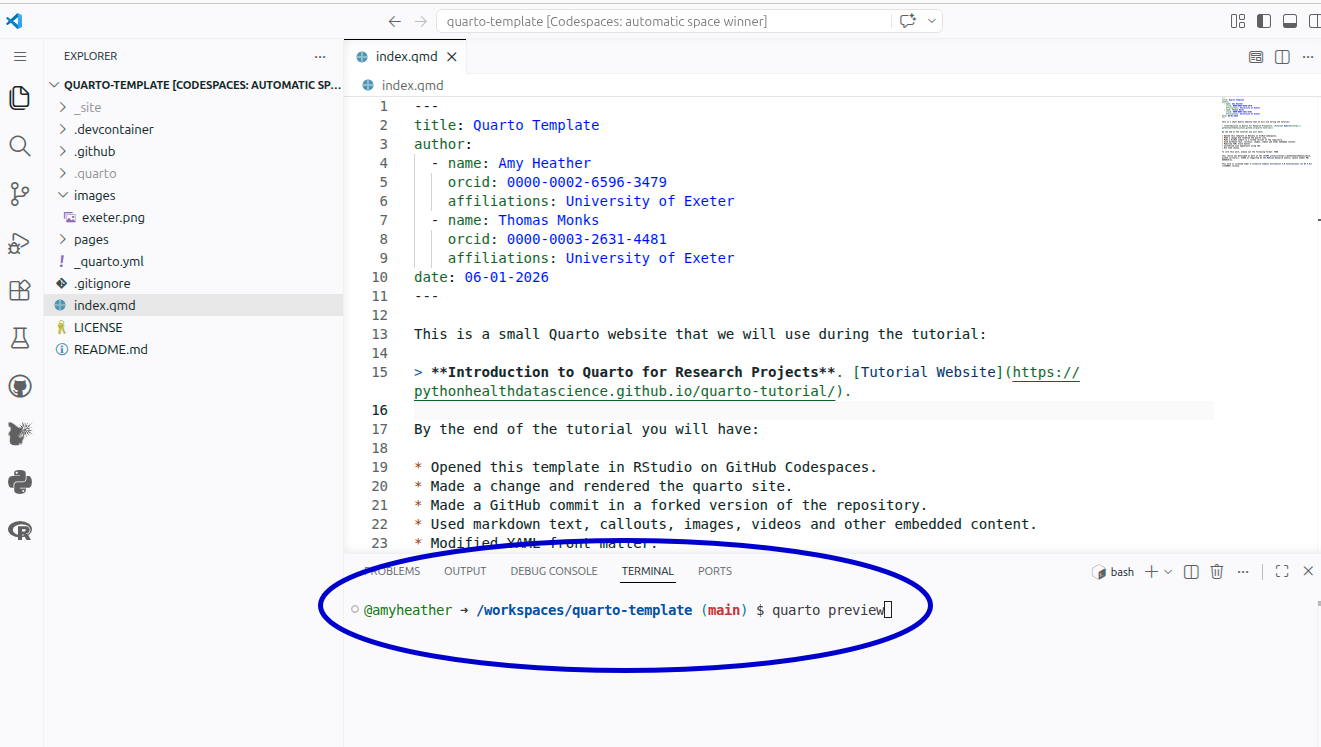
You can then use the http://localhost:... link printed in the Terminal to open your site in the browser.
With this method, the site updates automatically whenever files are saved. In Codespaces, files are auto‑saved very frequently, so the preview will re-render often; for that reason, the Preview button described above is usually a calmer option during this workshop.