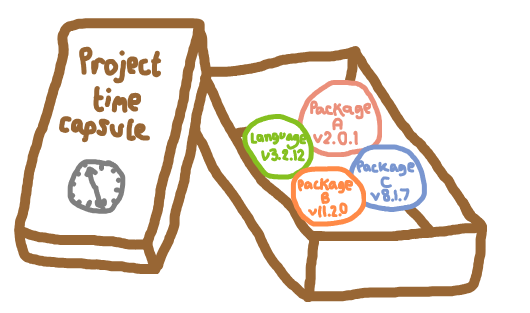
Recording the environment used acts like a time capsule, allowing you to return to a project later and run it with the exact same packages and versions, reproducing the results generated previously.
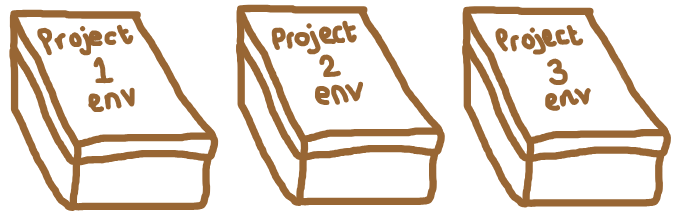
Managing dependencies allows you to isolate environments for different projects. Each project can maintain its own set of packages and R version, preventing conflicts between projects and making it effortless to switch between them without worrying about version mismatches.
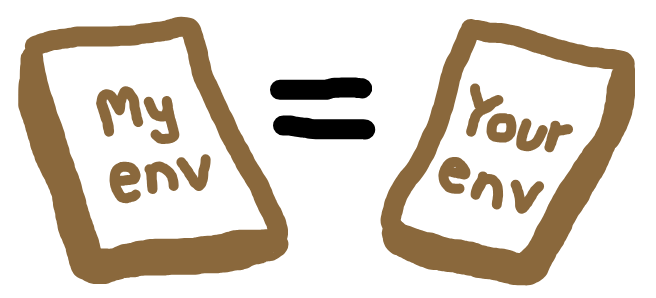
Consistent environments are important for collaboration. Ensuring everyone on the team uses the same setup prevents issues caused by differing packages or versions.
Tools
In Python, there are several popular tools for environment management. We’d recommend using a tool that can do both:
Install and switch between different versions of Python
Install required packages and dependencies.
As outlined in the table below, there are several tools that can achieve this - conda, mamba and uv. However, there are other factors to consider - for example:
Default location - by default, are environments created in the project folder (local) or in a central cache (shared across projects)?
Note: This isn’t too important, as for all these tools, the location can be customised!
Dependency files - does the tool maintain a list of top‑level packages, or a full snapshot of the environment?
“Top-level packages” are packages that you explicitly request (for example, the names you put in environment.yaml).
A snapshot is a complete pinned list of all packages in the environment (including indirect dependencies) with exact versions so the environment can be recreated.
Speed
Whether it can build and publish packages - can the tool build Python packages for distribution? If you are structuring your research as a package, you may wish to use one tool - or separate tools - for dependency management and creation of your package.
Tool
Python versions
Default location
Dependency files
Speed
Can build + publish package?
venv
❌ No
Project folder
requirements.txt(top-level only)
⚡ Fast
❌ No
conda
✅ Yes
Central
environment.yml(top-level or snapshot)
🐢 Slow
❌ No
mamba
✅ Yes
Central
environment.yml(top-level or snapshot)
🚀 Very fast
❌ No
poetry
⚠️ Partial
Central
pyproject.toml(top-level) + poetry.lock(snapshot)
🐢 Slow
✅ Yes
uv
✅ Yes
Project folder
pyproject.toml(top-level) + uv.lock(snapshot)
🚀 Very fast
✅ Yes
⚠️ Partial: Poetry can select among installed versions of Python, but cannot install new Python versions itself.
Part of Python’s standard library (from 3.3+), venv quickly replaced pyvenv and virtualenv as the standard way of managing virtual environments. It is included as part of the standard Python library, and so requires no installation. No support for Python version switching.
Comes with Anaconda/Miniconda or can be installed separately. It can install and manage multiple Python versions, and non-Python dependencies (e.g. R, Node.js, compilers and system libraries).
An all-in-one tool for dependency management and packaging. Supports reproducible environments via poetry.lock, and can build/distribute your project as a Python package. Cannot install Python versions itself, but allows selecting from those available on your system.
A modern tool written in Rust. It is designed to be very fast - 10-100x faster than pip or conda. It combines features of pip, venv and poetry, managing python versions and supporting packaging. It is an emerging all-in-one solution.
In R, managing your project environment typically requires multiple, specialised tools rather than a single all-in-one solution. The current solutions are:
A package for project-specific libraries and lockfiles. It records the exact package versions used in a project (via renv.lock), so you can recreate the same environment later or on another machine.
An emerging tool for declarative R environments using rproject.toml and rv.lock. You declare the R version and all dependencies up front; rv then enforces that version and set of packages for the project.
Legacy tools
R version management: Before rig, users had to install and switch R versions using platform-specific tools (e.g. RSwitch on Mac, CRAN installer on Windows, Homebrew or manual compilation on Linux). These approaches are more involved and prone to inconsistencies.
R package management:packrat used to be the most popular package manager, but was superseded by renv which is simpler to use and more robust.
Version
This book and its examples use conda/mamba, as they are established tools for package management that can also install specific versions of Python, enabling you to easily switch between versions for different projects.
You can choose between them - mamba is just a drop-in replacement for conda that is faster and has clearer error messages.
How will we work?
For reproducibility and universal applicability, all conda/mamba instructions in this book will be run from the command line. These commands should be run from the terminal on Linux or macOS, or Git Bash (or Anaconda Prompt) on Windows. This approach gives you full control, works in any environment, and aligns with best practices used in collaborative and professional settings.
However, there is also Anaconda Navigator - an application bundled with the Anaconda Distribution. Navigator allows you to manage environments and install packages using a point-and-click interface. If you’re curious about using Anaconda Navigator instead, you can follow along with this walkthrough: How to Create Virtual Environment in Anaconda Navigator | Python.
Install conda/mamba
Refer to the documentation for the latest instructions on installing conda/mamba for your operating system:
Channels are locations where conda stores and retrieves packages. You can choose which channel to use, and can a select a few with an order of priority.
We have used conda-forge which is a community-maintained channel run by volunteers. It offers a wide range of packages and is a popular choice for many users.
Other main channels include:
default and anaconda - Maintained by Anaconda’s engineers and designed for high security and stability. As of January 2026, organisations with 200 or more employees have to pay to use this channel (excluding students and non-commercial research at universities). Please check Anaconda’s current Terms of Service for the latest details.
In the command line, run either set of commands to:
Create your environment.
Activate it (replacing envname with your environment name).
List the packages in your environment.
Before running these commands, make sure your terminal is “in” the project folder that contains environment.yaml. This folder is your working directory.
NoteViewing and setting working directory
If you are using Linux, macOS or Git Bash:
# Show current folder (Linux / macOS)pwd# List files to check environment.yaml is herels# If you are not in the right folder, move into itcd path/to/your/projectls
If you are using Windows Command Prompt / Powershell:
# Print current directorycd## List filesdir
Using conda:
conda env create --file environment.yamlconda activate envnameconda list
Using mamba:
mamba env create --file environment.yamlmamba activate envnamemamba list
When you run the list command, you should see a list of packages, versions, builds and channels, similar to:
For most users, the best way to manage R versions is to use rig. It is a tool that allows you to easily install, list and switch between R versions on Windows, Mac and Linux.
Install rig
Follow the installation instructions for your operating system on the rig GitHub page.
As Pop_OS! is not officially supported, we then also need to set the RIG_PLATFORM, as described in this GitHub issue. First, let’s find out what version the OS is:
Apply the settings to your terminal and check we see ubuntu-24.04 when run command below:
source ~/.profileecho"$RIG_PLATFORM"rig system detect-platform
You should now be able to run rig commands (e.g., rig add 4.4.1).
After installation, check that it works by running:
rig--version
View available R versions
List all R versions installed on your machine:
rig list
Example output:
* name version aliases------------------------------------------3.6.04.2.24.3.14.4.14.5.0
Add a new R version
To install a specific R version:
rig add 4.1.2
Or simply add the latest version:
rig add
Set the active R version
Choose which R version should be active (for example, when you open RStudio):
rig default 4.1.2
This sets R 4.1.2 as the default R version for new R sessions (including RStudio).
If you later switch R versions in another way (for example, by reinstalling R or changing your PATH) and want rig to control it again, run rig default <version> once more (e.g., rig default 4.1.2) to set that version as the default again.
Packages
The processing of tracking and controlling the packages your project uses, including their versions, is called dependency management.
Using conda/mamba
Setup environment
This book and its examples use conda/mamba. If you haven’t already, follow the instructions in 🔄 Version to set-up an environment with just your chosen version of python.
Adding packages to the environment
Add packages to the environment by modifying the environment.yaml file. For example, to add simpy:
With the environment active (i.e. after running conda activate envname), you can then run the following command to update it. Activating the environment before updating ensures that the changes are applied to the correct environment, rather than unintentionally modifying the base environment.
conda env update --file environment.yaml --prune
You should specify the exact package versions in your environment.yaml. If you’re starting from scratch, you may not know which versions you need, so you can leave them out initially, as we did above. However, now that we have built our environment (which used the latest versions as none were specified), it is important to then record your versions in the environment.yaml. These are the versions you can see by running conda list.
When working on a project from scratch, you will often build up your environment organically and iteratively as you find more packages you want to use.
Deleting the environment
To delete your environment, first deactivate it:
conda deactivate
You can then run:
conda remove -n envname --all
In R, the most popular tool for managing dependencies is renv.
Creating an renv environment
1. Install renv
If you haven’t already, install renv from CRAN:
install.packages("renv")
2. Create an R project
It’s best to use renv within an R project. R projects are commonly created and managed by RStudio.
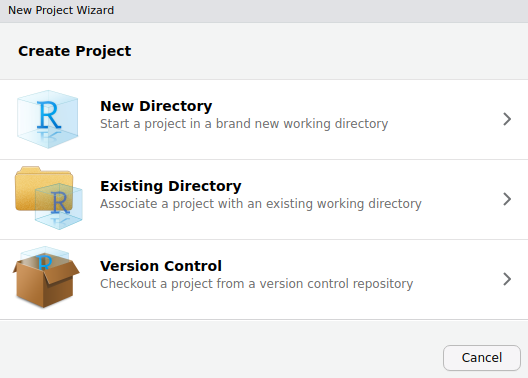
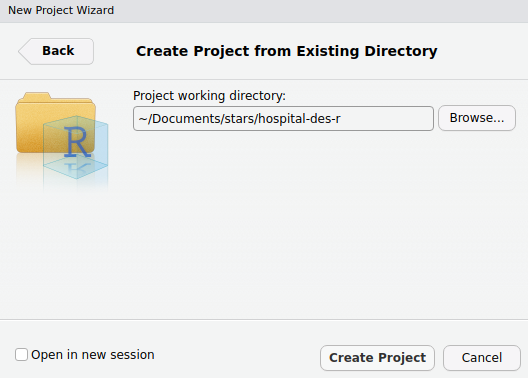
In RStudio, select “File > New Project…” and choose “Existing Directory”.
Navigate to your project directory, then select “Create Project”.
This will create :
.Rproj: project file (contains some settings for the project).
If you are not using RStudio, R projects can be difficult to set-up, as they have to be created manually. It is possible to use renvwithout an R project though, as discussed in this GitHub issue. This can be done using setwd() to set your repository as the current working directory, and then continuing with the steps below.
3. Initialise renv
In your R console, run:
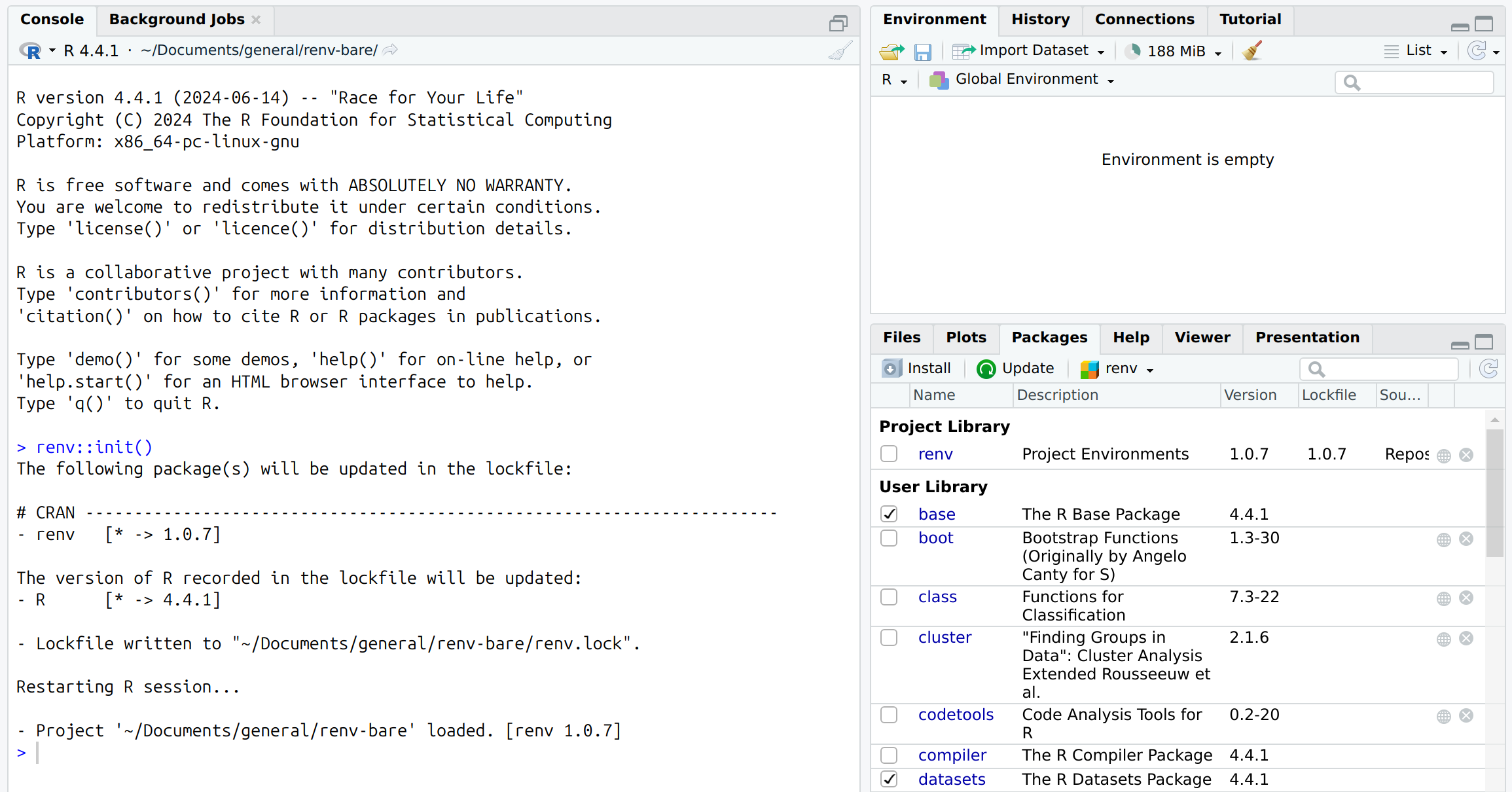
renv::init()
This creates:
renv/: stores packages for the project.
renv.lock: records packages and the exact versions used.
.Rprofile: ensures renv activates when the project opens.
When you initialise renv, your project gets its own project library - a private folder (renv/library/) where packages are installed just for this project. This means package versions are isolated and recorded for each project, so updating a package in one project won’t break others. This makes collaboration and reproducibility much easier.
This is different from the user library, which is the default shared location where R installs packages used by all your R projects. See the “Packages” section on RStudio, which will show your project v.s. user library:
Some further information relevant when initialising renv:
NoteImplicit or explicit mode
If a DESCRIPTION file is present, renv will prompt you to choose how dependencies are discovered:
Implicit mode:renv will scan your project files for any packages used in your code.
Explicit mode:renv will use only the packages listed in your DESCRIPTION file (under “Imports”).
We recommend choosing implicit mode for most projects, as it ensures that all packages actually used in your code are detected and managed, even if you forget to list them in DESCRIPTION.
We’ll explain more about DESCRIPTION files and these modes in the section on adding packages to the environment.
NoteInitialising a bare environment
By default, renv::init() will scan and install packages into your project library. If your directory is empty or contains no code using packages, only renv itself will be installed.
If you want to initialise renv without installing any packages, you can use:
renv::init(bare =TRUE)
This will create renv/ and .Rprofile but not renv.lock or a project library.
However, when you later run renv::snapshot(), renv will scan and install packages at that point. If you use implicit mode, it will detect and install all packages used in your code - even if you started with a bare environment.
We’ll explain more about snapshots and implicit mode in the section on adding packages to the environment.
Adding packages to the renv environment
It is possible to simply install packages directly using commands like:
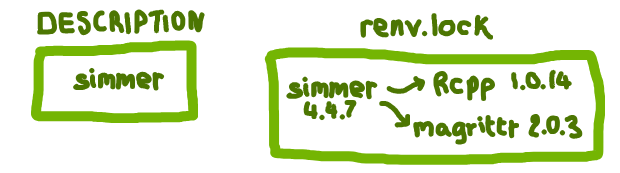
However, we recommend using a DESCRIPTION file. This is a file listing only the main packages your project directly depends on - i.e. those you might have add using renv::install().
This differs from renv.lock which records all packages needed to recreate your environment, including every main package and all their dependencies, plus the exact versions used.
The benefit of using a DESCRIPTION file when adding packages is:
📝 Clear requirements. The DESCRIPTION file gives a simple, readable summary of your project’s main packages. It’s much easier to read than renv.lock.
📦 Consistency with package development. If your project is (or might become) an R package, the DESCRIPTION file is the standard way to declare dependencies.
🔄 Alternative for environment recreation. While renv.lock is the primary tool for restoring an renv environment, having a DESCRIPTION file is a valuable backup. If you encounter issues with renv.lock, you can use DESCRIPTION to reinstall the main dependencies.
🎯 Explicit snapshots. If you want precise control over what’s included in renv.lock, you can use an “explicit” snapshot. This means only the packages listed in DESCRIPTION (and their dependencies) are recorded.
1. Create a DESCRIPTION file
Before creating the file, you may want to install usethis, which provides helper functions for working with DESCRIPTION:
install.packages("usethis")
You can then either:
Create DESCRIPTION manually (using the template below), or
Let usethis write the standard template for you with:
usethis::use_description()
This will create a DESCRIPTION file in the current project. If you prefer to create it by hand, create a blank file named DESCRIPTION and copy in the template below:
Package: packagenameTitle: What the Package Does (One Line, Title Case)Version:0.0.0.9000Authors@R:person("First", "Last", , "first.last@example.com", role =c("aut", "cre"))Description: What the package does (one paragraph).License:`use_mit_license()`, `use_gpl3_license()` or friends to pick a licenseEncoding: UTF-8Roxygen:list(markdown =TRUE)RoxygenNote:7.0.0
2. List dependencies
After you have a DESCRIPTION file, you need to list your dependencies under
Imports (required packages).
Suggests (optional/development packages).
For non-package projects, it’s simplest to list all dependencies under Imports, which will be identified by renv (whilst those under Suggests may not unless used in scripts).
Suggests is more relevant when constructing a package, as it distinguishes packages necessary only for optional features, vignettes or testing, from those required within the package itself.
You can edit the Imports section manually or use usethis::use_package() - for example:
usethis::use_package("dplyr", type ="Imports")usethis::use_package("future", type ="Imports")
Note: In the R Packages book, they recommend that - in DESCRIPTION - no versions are specified, or a minimum version is specified if you know that an older version of specific package/s would break the code. This is why it is important to also create an renv.lock file (as below), so you do have a record of the exact versions used.
Example DESCRIPTION with packages dplyr and future:
Package: exampleTitle: Example DESCRIPTIONVersion:0.0.0.9000Authors@R:person("Amy", "Heather", , "a.heather2@exeter.ac.uk", role =c("aut", "cre"))Description: This is an example DESCRIPTION, used for environment management.License: MIT + file LICENSEEncoding: UTF-8Roxygen:list(markdown =TRUE)RoxygenNote:7.0.0Imports: dplyr future
At the very beginning of your project, your DESCRIPTION file might only include a few packages. As your project develops and you find yourself using additional packages, simply add each new dependency to the Imports section of your DESCRIPTION file.
To set-up an environment that will work for running the examples in this book, see the “Test yourself” section.
3. Install packages from DESCRIPTION
Install packages listed in DESCRIPTION (and their dependencies) with:
renv::install()
This will only install packages listed under “Imports” - those under “Suggests” have to be installed manually.
4. Update renv.lock
Take a snapshot of your environment and update renv.lock:
renv::snapshot()
This will update the lock file with a full list of the exact packages and dependencies, including the versions you have installed.
There are three snapshot types:
Implicit (default): Records packages in DESCRIPTION Imports section (not the Suggests section) and those used in your code.
Explicit: Only records packages listed in DESCRIPTION Imports section (not the Suggests section).
All: Records all packages in your environment.
We recommend using the default (implicit) to ensure all used packages are captured, even if not listed in DESCRIPTION. However, you should remove unused scripts to avoid capturing unnecessary packages.
If you are using a DESCRIPTION file with “Imports” and “Suggests”, you may wish to use the “all” snapshot, as otherwise renv will only include packages in imports or used in the code in the lockfile.
This will remove the renv auto-loaded, the renv/ directory, and the renv.lock file in one step, and restart the R session.
Environment for this book
Now that you have seen how to set up a simple example environment, the next step is to create the environment used throughout this book. This environment is called des-rap-book and contains all the packages required to run the code in this book. You can remove any earlier practice environments and instead work only with des-rap-book from this point on.
It does not yet include your simulation model code itself; you will create that as a separate package and then add it to this environment as a local install on the Structuring as a package page.
To install the environment:
In your des-rap-python/ folder, create an environment.yaml file and copy in the text below.
Build the environment by running conda env create --file environment.yaml.
Check it by running conda activate des-rap-book and conda list.
Now that you have seen how to set up a simple example environment, the next step is to create the environment used throughout this book. It contains all the packages required to run the code in this book.
If you have earlier practice environments in des-rap-r/, you can delete these and start from scratch (for example, you can delete the DESCRIPTION, renv files/folders and .Rproj).
The environment below does not yet include your simulation model code itself; you will create that as a separate package and then add it to this environment as a local install on the Structuring as a package page.
To install the environment:
In your des-rap-r/ folder, set-up an R project.
Initialise renv by running renv::init().
Create a DESCRIPTION file and copy in the above text.
Install those packages by running renv::install().
Create/update renv.lock by running renv::snapshot().
If you want to know the exact versions used, see the renv.lock file in the des_rap_book GitHub repository.
Title: DES Rap BookImports:cyclocomp,checkmate,diffobj,dplyr,fitdistrplus,future,future.apply,ggplot2,gridExtra,jsonlite,kableExtra,lintr,lubridate,pak,patrick,plotly,prettycode,queueing,readr,reticulate,rmarkdown,R6,rstudioapi,simEd,simmer,styler,testthat,webexercises
Other
If you’re interested in using one of the other tools for dependency management, we’ve provided some brief information on each below, and direct you to other sources for a more detailed explanation of how to use them.
Notevenv
Installation
As venv is included with the standard Python library, you do not need to install it.
Environment creation
To create a virtual environment, we use the python -m venv <name> command. Typically the environment is just named venv - and so, we just execute:
python-m venv venv
You should execute this from within your project folder. It will create a new folder named venv/ to store the environment within.
After installation, check that Poetry is available:
poetry--version
Environment creation
From our project directory, we can create a new poetry project by running:
poetry init
This will guide you through a series of prompts to create a pyproject.toml file. You can answer these or just press “Enter” to accept the default values. For example, accepting the defaults can produce something similar to:
When first add a package, the environment will be created.
Choosing python version
To use a specific version of python:
poetry env use 3.11poetry install
However, it cannot install specific versions for you - this is only choosing between versions already on your machine.
Adding packages
To add dependencies, use the poetry add command (rather than editing pyproject.toml directly). This will install the package, update pyproject.toml and generate a poetry.lock file if one does not already exist.
And creates/updates poetry.lock to record the exact package version installed:
# This file is automatically @generated by Poetry 2.1.3 and should not be changed by hand.

[[package]]
name = "simpy"
version = "4.1.1"
description = "Event discrete, process based simulation for Python."
optional = false
python-versions = ">=3.8"
groups = ["main"]
files = [
    {file = "simpy-4.1.1-py3-none-any.whl", hash = "sha256:7c5ae380240fd2238671160e4830956f8055830a8317edf5c05e495b3823cd88"},
    {file = "simpy-4.1.1.tar.gz", hash = "sha256:06d0750a7884b11e0e8e20ce0bc7c6d4ed5f1743d456695340d13fdff95001a6"},
]

[metadata]
lock-version = "2.1"
python-versions = ">=3.10"
content-hash = "53e967cadef99331a7f895f64ccb1bd8680e6fe09253335b9d88bd4cb3d6d793"
To install a specific version of a package, specify it when adding:
When you run the python file, it will create the environment:
uv run main.py>> Using CPython 3.10.14 interpreter at: /home/amy/mambaforge/bin/python3.10>> Creating virtual environment at: .venv>> Hello from uv-test!
Whenever you execute uv run, it checks that everything is up-to-date: lockfile matches pyproject.toml, environment matches lockfile. To manually update though, can run:
uv sync
Choosing python version
To change the python version, open the .python-version file (e.g. nano .python-version), then edit the listed version, save, and run uv sync. It will install the specified version of python.
Adding packages
To add packages, run uv add, and can specify versions:
uv add simpyuv add nbqa==1.9.0
The config files are:
pyproject.toml - a simple list of the packages you add with uv add, including any specified versions.
uv.lock - full details on every package in the environment.
Example pyproject.toml:
[project]
name = "uv-test"
version = "0.1.0"
description = "Add your description here"
readme = "README.md"
requires-python = ">=3.10"
dependencies = [
    "nbqa==1.9.0",
    "pytest>=8.3.5",
    "simpy>=4.1.1",
]
If you’re interested in using one of the other tools for dependency management, we’ve provided some brief information on rv below, and direct you to other sources for a more detailed explanation of how to use it.
Noterv
This section provides more information on rv.
Using rv, you can declare an R version up-front and, whilst it will not automate installation or switching of R versions, it will warn/error if you try to use a different version.
It requires all dependencies to be specified before installation, rather than taking snapshots as you go along like with renv. These dependencies are saved in an rproject.toml file.
Setting up the project with a particular version of R
To set up rv project, execute from terminal rv init. However, if you wish to use a particular version of R, you should also specify this when setting up the project.
Whilst rv will not install new versions of R for you, you can fix each project to a particular version of R, and it will then warn/error if the running version of R does not match this.
You can view a summary of the environment by running:
rv summary
If you try to do this without that version of R installed, the project will initialise successfully, but running rv summary you will see an error message similar to:
Failed to get R version

Caused by:
    Specified R version (4.5) does not match any available versions found on the system (3.6.0, 4.2.2, 4.3.1, 4.4.1)
Setting repositories
When we ran rv init, we got an error message:
WARNING: Could not set default repositories. Set with your company preferred package URL or public url (i.e. `https://packagemanager.posit.co/cran/latest`)
To resolve this, we opened rproject.toml and amended the repositories section to list CRAN:
Without this change, it was not possible to install packages (would “fail to resolve all dependencies”).
Adding packages
To add packages, simply run rv add <package>. This will install the specified package, and update the rproject.toml file to list it as a dependency, and add all installed packages to an rv.lock file. For example, if we run:
rv add simmer
The rproject.toml dependencies section updates to:
dependencies = [
    "simmer",
]
An rv.lock file is created:
# This file is automatically @generated by rv.
# It is not intended for manual editing.
version = 2
r_version = "4.5"

[[packages]]
name = "Rcpp"
version = "1.0.14"
source = { repository = "https://cran.r-project.org/" }
force_source = true
dependencies = []

[[packages]]
name = "codetools"
version = "0.2-20"
source = { builtin = true }
force_source = false
dependencies = []

[[packages]]
name = "magrittr"
version = "2.0.3"
source = { repository = "https://cran.r-project.org/" }
force_source = true
dependencies = []

[[packages]]
name = "simmer"
version = "4.4.7"
source = { repository = "https://cran.r-project.org/" }
force_source = true
dependencies = [
    "Rcpp",
    "magrittr",
    "codetools",
    { name = "Rcpp", requirement = "(>= 0.12.9)" },
]
Adding specific versions of packages
Currently, rv requires this is done by editing the rproject.toml file and then running:
rv sync
I found this a bit hit-or-miss - several packages I tried failed to install due to issues fetching dependencies like glue. However, these two examples of using simmer 4.4.6.4 (instead of the latest 4.4.7) worked fine - either installing from CRAN or GitHub:
Check out the rv GitHub repository for more advice on using this tool, and the latest instructions (as this package is still in active development).
System libraries and project-specific settings
Besides the packages and R version used, your R environment will also include system libraries (external software required by some packages) and project-specific settings (e.g. .Rproj, .Rprofile).
The exact system libraries required will depend on which packages you use, what operating system you have, and whether you have used R before. If system libraries are missing, package installation may fail, even if you have the correct R package versions. For example, working on Ubuntu, we found that we had to install the following system dependencies for igraph:
Documenting required system libraries in the project’s README or set-up instructions.
Including project files (like .Rproj and .Rprofile) in version control (e.g., Git).
NoteUsing pak for system requirements
The pak package can help with system libraries. Running pak::pkg_sysreqs("packagename") will return a list of operating system libraries and installation commands required for a given package. You can then document these in your README or set-up scripts.
For example:
pak::pkg_sysreqs("plotly")
✔ Updated metadata database: 3.72 MB in 8 files.
ℹ Updating metadata database
✔ Updating metadata database ... done
── Install scripts ───────────────────────────────────────────── Ubuntu 24.04 ──
apt-get -y update
apt-get -y install libcurl4-openssl-dev libssl-dev cmake make libuv1-dev \
  pandoc libicu-dev

── Packages and their system dependencies ──────────────────────────────────────
curl      – libcurl4-openssl-dev, libssl-dev
fs        – cmake, libuv1-dev, make
knitr     – pandoc
openssl   – libssl-dev
rmarkdown – pandoc
sass      – make
stringi   – libicu-dev
Recreate & troubleshoot
When you return to a project after some time or share it with collaborators, you often need to recreate the original environment so that the code runs successfully, produces the same results as before, and can be reliably reused or adapted by others.
If you skip this step and instead use different versions of Python and packages, the code may fail to run altogether or may produce different results from those originally reported.
If you skip this step and instead use different versions of R and packages, the code may fail to run altogether or may produce different results from those originally reported.
This section explains how to recreate an environment.
1. Identify or create environment file
Begin by identifying any existing files that list the necessary details: python version, required packages, and their versions. If these files fully specify the environment, use them directly to set-up the environment.
If information is missing, fill in the gaps as follows, creating your own environment.yml (or similar) with the details gathered:
Python version: Look for explicit version info in documentation or project materials. If unavailable, estimate based on project dates or use the latest release.
Packages: Check documentation for a list of packages, or inspect code for import statements to determine what’s needed.
Package versions: Search for version details in documentation, or estimate based on project’s age; otherwise, consider installing the latest compatible versions.
2. Build environment
Install the environment using your chosen tool (ideally one that controls the python version, like conda). If you encounter installation errors (e.g. could not find a version that satisified the requirement...):
Check if Python version is supported by the package.
Try alternative sources (PyPI v.s. conda, different conda channels).
Ensure package name has no typos, and that the version number is valid.
After installation, test your code. If problems arise due to incompatible package versions (e.g. latest versions causing changes or errors):
Downgrade affected packages, and update your environment file with the versions required.
1. Identify R version, packages and their required versions
Start by looking for files that define the environment, like renv.lock or DESCRIPTION. If such files are missing or don’t specify versions:
R version: Look for explicit version info in documentation or project materials. If unavailable, estimate based on project dates or use the latest release.
Packages: Check documentation for a list of packages, or inspect code for import statements (library(), require()) to determine what’s needed.
Package versions: Search for version details in documentation, or estimate based on project’s age; otherwise, consider installing the latest compatible versions.
2. Build R environment
The required R version can be switched to using rig.
If an renv.lock file exists, use renv::restore() to create the exact previous environment. This will match package versions exactly, and prompt you to use the appropriate R version. However, if you encounter problems, you may wish to switch to a DESCRIPTION file.
If you are working from a provided DESCRIPTION file, or have deduced the required packages, then renv::install() can be used.
For the latest versions, just list the packages in DESCRIPTION (with no pinned dependencies) and run renv::install().
For specific versions, the simplest method can be to individually install these using renv::install("pkg@version"), record the package in DESCRIPTION, and then ensure the version is recorded by runing renv::snapshot().
NoteBackwards compatability in R
In theory, the R ecosystem aspires to maintain backwards compatibility, meaning that code written for older package versions should continue to work with newer ones. However, in practice, there is no strict guarantee of backward compatibility in R, either for the core language or for contributed packages.
“If we’re being honest, most R users don’t manage package versions in a very intentional way. Given the way update.packages() and install.packages() work, it’s quite easy to upgrade a package to a new major version without really meaning to, especially for dependencies of the target package. This, in turn, can lead to unexpected exposure to breaking changes in code that previously worked. This unpleasantness has implications both for users and for maintainers.”
Hence, using a lockfile like renv.lock is the only reliable way to ensure that your environment is recreated exactly as it was - but DESCRIPTION can serve as a valuable back-up when this doesn’t work, and otherwise just as a handy summary of the main packages.
NoteAlternative approach: time-based snapshots
A time-based snapshot is a copy of all the packages from a repository (like CRAN) exactly as they were on a certain date. This provides an alternative approach to environment recreation, as you can point R at a particular snapshot, ensuring package versions match what was originally available for your project at that time.
MRAN (Microsoft R Application Network) was a free service provided by Microsoft that acted as a copy (“mirror”) of CRAN, the main R package repository. It had a “CRAN time machine” - a daily archive of packages as they appeared on each date since 2014. This let users recreate the exact package environment for a specific date in the past, helping with reproducibility and avoiding problems from changes in newer package versions. However, in July 2023, MRAN was retired and is no longer available
After MRAN closed, Posit Public Package Manager (P3M) became the main free source for R package snapshots. P3M creates daily snapshots of CRAN, Bioconductor and Python’s PyPI, which you can use the same way: to get the exact package set for a chosen date. It’s limitation however is that it does not archive packages from GitHub and r-universe. For more on P3M, check out this video from Posit PBC:
You may want to pin repositories (e.g., Posit Public Package Manager snapshots) using options(repos = ...) in the project’s .Rprofile. You can open it by running:
usethis::edit_r_profile()
You can then edit the default repositories used - in the example below, to ensure that renv::snapshot() and renv::restore() work against a consistent, time-based snapshot:
For packages installed from GitHub, you can choose a specific version by pinning to a specific commit. Each commit has a unique ID (known as a SHA or hash), so you can follow this syntax when installing with renv:
renv::install("owner/repo@commit-sha")
As explained in this ROpenSci article, r-universe does not maintain historical archives of all package versions; instead, it relies on the upstream git repositories to provide historical sources. This means that while r-universe can serve packages, long-term reproducibility depends on the stability of the original GitHub repositories. For critical projects, consider pinning to specific GitHub commits rather than relying on r-universe alone.
3. Troubleshooting
Restoring an R environment can often run into issues, especially with older projects or system differences. Below are common problems and solutions.
Unavailable packages
When recreating environments with older R versions or package versions, you may encounter errors if those packages are no longer available for your chosen R version. CRAN often archives older packages, and support for very old R versions is limited.
Symptoms:
Errors stating that a package or a specific version cannot be found or installed.
Installation fails even though the package exists for newer R versions.
Solutions:
If exact reproducibility is not required, consider updating to a more recent R version and/or newer package versions.
If a package is available in the CRAN archive (http://cran.r-project.org/src/contrib/Archive/PackageName/), you may be able to install it using renv (as it will search the main CRAN repository first but then look in the CRAN archives). You just need to specify a version like:
renv::install("package@version")
Consider using P3M snapshots from around the time the package was last available, which may provide compatible versions.
Backdating
If you set up your environment with the latest R and package versions (for example, when no specific versions are listed), you may find your code requires older package versions to work as expected.
Symptoms:
Code relies on functions or behaviors from earlier package versions.
Specify minimum or exact versions in your DESCRIPTION file.
Be aware that not all old versions are available for every R version; you may need to adjust your R version or accept a newer package.
To specify a minimum version in DESCRIPTION:
Imports:dplyr (>=1.0.0)
To install a particular version using renv (which will be recorded in renv.lock after you call renv::snapshot()):
renv::install("dplyr@1.1.2")
Missing system dependencies
Some R packages require external system libraries (e.g., C libraries, database clients) not installed by default.
Symptoms:
Package installation fails with errors about missing libraries (e.g., “cannot find -lssl”, “libcurl not found”, missing .so files).
Solutions:
Check the CRAN page for each package for any system requirements (listed beside SystemRequirements). The openssl and curl packages are a common source of these issues.
Install the required system dependencies and document them in your README for others. For example:
Windows: Follow package documentation or use precompiled binaries.
Legacy user libraries
If R has been installed for a long time, your user library (the default location for installed packages) may contain outdated or conflicting packages. This can interfere with renv, sometimes causing silent failures or unpredictable behaviour.
Symptoms:
renv commands have no effect or fail with unclear messages.
Packages are loaded from the user library instead of the project library.
Solutions:
Check .libPaths() to confirm the project library is listed first when renv is active.
Temporarily move or rename your user library directory and restart R to see if renv works correctly.
If issues persist, consider reinstalling R or resetting your user library.
As a last resort, a clean operating system install can resolve deep or persistent conflicts.
Further ideas
If you are interested in exploring more advanced or alternative approaches to managing reproducible environments - especially when dealing with complex external dependencies - consider the following tools and resources:
Docker
Using Docker allows you to encapsulate your entire python environment - including system dependencies, specific Python interpreters, and all packages - inside a container. This approach can solve issues related to external dependencies and ensures that your analysis runs identically across different machines, as it will ensure use of the same operating system.
There are many different ways you can set up a docker image, depending on your purpose. The first step is to create a Dockerfile. Some tutorials include:
In this page, we covered some of the popular package managers - conda, mamba, venv, poetry and uv - but there are many other package managers available! Examples include:
Nix (https://nixos.org/) - Unlike conda or pip, Nix environments can strictly pin every dependency (including low-level libraries). You declare every package used - and with NixOS, you also can configure your whole operating system (similar to Docker).
Hatch (https://hatch.pypa.io/latest/) - A modern, all-in-one Python project manager handling virtual environments, dependency management, and packaging within a unified workflow.
Rye (https://rye.astral.sh/) - A new Python tool seeking to unify virtual environment management, dependency resolution, and packaging with simple commands.
PDM (https://pdm-project.org/en/latest/) - A package and project manager following the latest Python packaging standards, with strong support for pyproject.toml.
Further reading
These are some nice resources generally covering topics related to python environment management:
Using Docker allows you to encapsulate your entire R environment - including system libraries, R versions, and packages - inside a container. This approach can solve issues related to external dependencies and ensures that your analysis runs identically across different machines, as it will ensure use of the same operating system.
dockerfiler: An R package for programmatically creating Dockerfiles, making it easier to build reproducible R environments with custom dependencies.
rocker: A collection of Docker images for R, maintained by the R community, which you can use as a base for your own projects.
R-universe
R-universe is an online platform for building, hosting, and distributing R packages—including those not available on CRAN. It can help you:
Access packages from multiple sources, not just CRAN.
Set up custom repositories (collections of R packages) for your team or organisation.
Centralise package management (as repositories can include public, private and experimental).
Further reading
These are some nice resources generally covering topics related to R environment management:
Environment management is important because it lets you isolate project dependencies and reliably recreate the same setup later for reproducible work and collaboration.
We introduce five main tools for managing environments: venv, conda, mamba, poetry and uv.
We go into detail on using conda/mamba to control Python versions and packages: install conda/mamba, create an environment.yaml file with desired packages, then run:
We provide the full des-rap-book environment specification required to run all examples in the book.
We also describe how to recreate and troubleshoot environments: find or reconstruct an environment file, rebuild the environment, and then resolve installation or compatibility errors by adjusting versions or channels and updating the environment file.
We introduce three tools for managing environments: rig, renv and rv.
We explain how to use rig to manage R versions, for example:
rig add 4.1.2rig default 4.1.2
We then explain renv for package management, with key steps of:
Creating an .Rproj.
Initialising renv (renv::init()).
Create a DESCRIPTION file declaring the main dependencies.
Installing these (renv::install()) (may require changing the snapshot type, as e.g., implicit mode will only install them if it can see them in use in your code).
Recording the specific package versions installed in an renv.lock file (renv::snapshot()).
We provide a full DES RAP Book R environment, listing all packages need to run the examples in the book.
We also describe how to recreate and troubleshoot environments: identify or infer R version and packages, restore from renv.lock or DESCRIPTION, handle time‑based snapshots and GitHub/r-universe packages, and diagnose common problems such as unavailable packages, backdating needs, missing system libraries, legacy user libraries and when Docker or rocker images may be preferable.
Test yourself
NoteWhy should you create an isolated environment for each project?
NoteWhen first creating a conda environment, what do we recommend putting in your environment.yaml?
NoteAfter building a Python environment and installing the packages you want, what is the recommended next step for reproducibility?
NoteWhat is the primary role of rig?
NoteOn this page, why is a DESCRIPTION file recommended alongside renv.lock for R projects?
NoteWhat is a sensible first step when you want to recreate someone else’s environment?